I’ve started to use a Recipe plugin that streamlines the process of adding a recipe to the site.
Once you log in, it should bring you to a screen that looks similar to this:
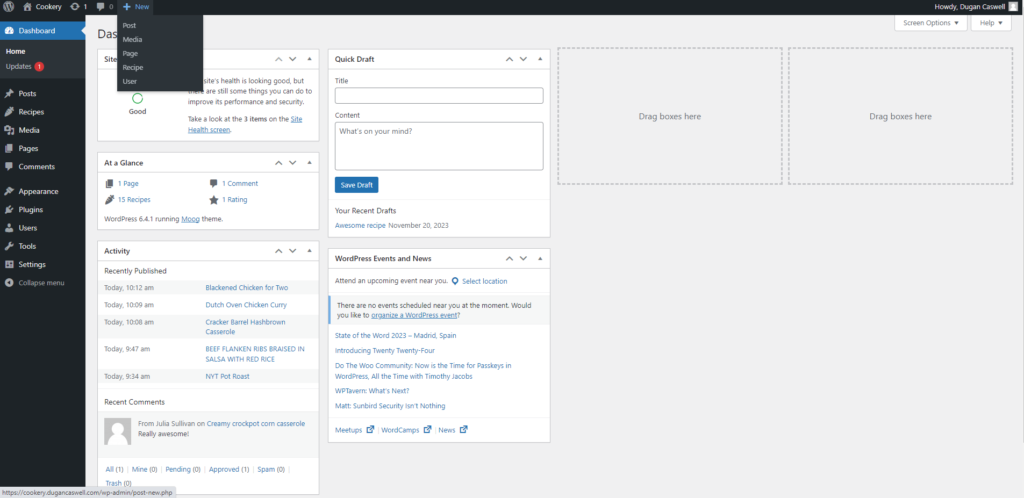
You can click the + New > Recipe button shown, or click on the menu on the right side Recipes > New Recipe.
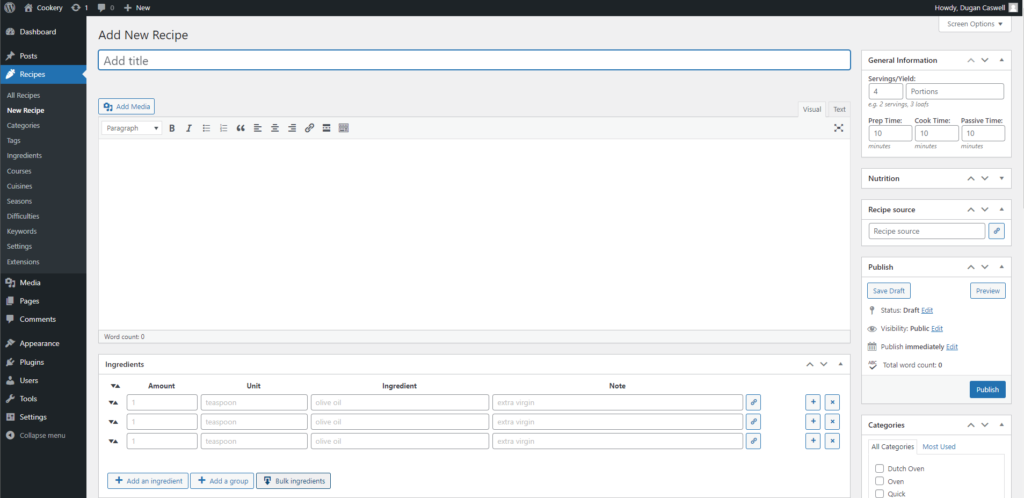
Add a title for your recipe. The next big text box is for a description, if you want. Over on the right, we have info on the servings, prep. & cook times. Below that, you can add a link to the recipe source, if you want.
Below that is the publish button to make the recipe appear on the site. make sure to hit that button when you’re finished editing your recipe.
But before you do that:
Back to the main block, we have an ingredients section. You can either add ingredients one at a time, or if you hit the “bulk ingredients” button, you can either copy/paste ingredients in, or simply type them out, one ingredient per line.
Note that if your recipe has different groups of ingredients, you’ll need to add the ingredients one at a time.
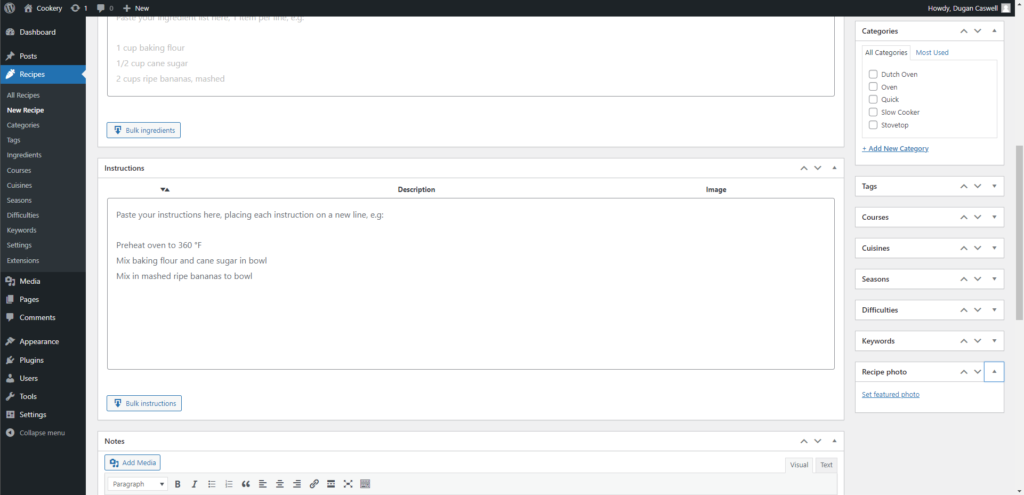
Below the ingredients we have an instruction field. Here, again, you can add instructions one at a time or you can hit the “bulk instructions” button and copy/paste instructions, each line will be a new number. Below the instructions you can add additional Notes.
Also note to the right the Categories field. You can assign the recipe to a category, or if you want, add a New Category!
Last but not least: Recipe photo. IF you have an image of the dish that you can upload to the featured image, please do so. If not, don’t worry about it. But also, if you make a dish and send me an image of it, I can upload it to the site.
When you’re done adding stuff, you can either hit ‘save draft’ or ‘Publish’. Publish will make it live instantly, ‘save draft’ will save a copy of it that we can publish later.
Let me know when you have questions and I’ll do my best to answer them.